How to personalise your fundraising pageΒ 

How to Edit Your Fundraising Page

Having trouble logging in?

You can connect your Coffee Morning fundraising page to your existing JustGiving account. But in order to do this, you need to click on the β€œpersonalise your page” link that we have emailed to you.

You cannot do this by clicking on β€œLog In”

Please can you check your junk or spam folder for any emails from β€œThe Coffee Morning Team” as this will contain the link that you need to personalise your Coffee Morning page and link it to your JustGiving account.

Here are steps on how to personalise your page or link it to your JustGiving Account
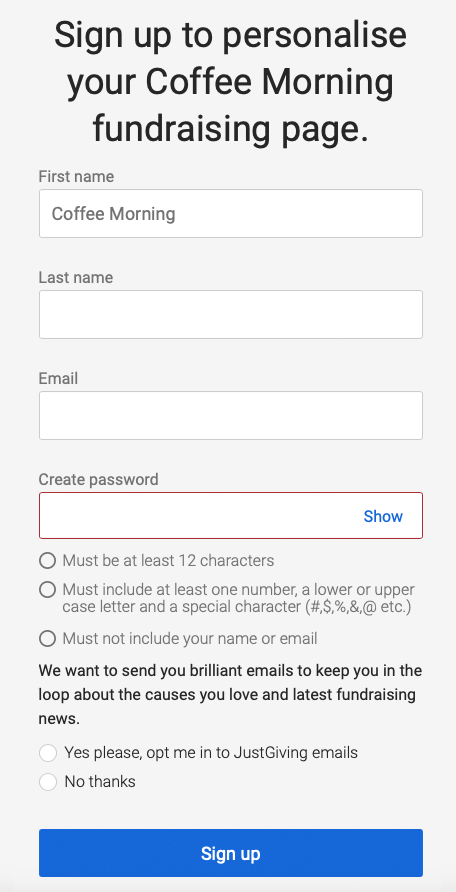
1. In the email we sent you, click on the β€œpersonalise your page” link.
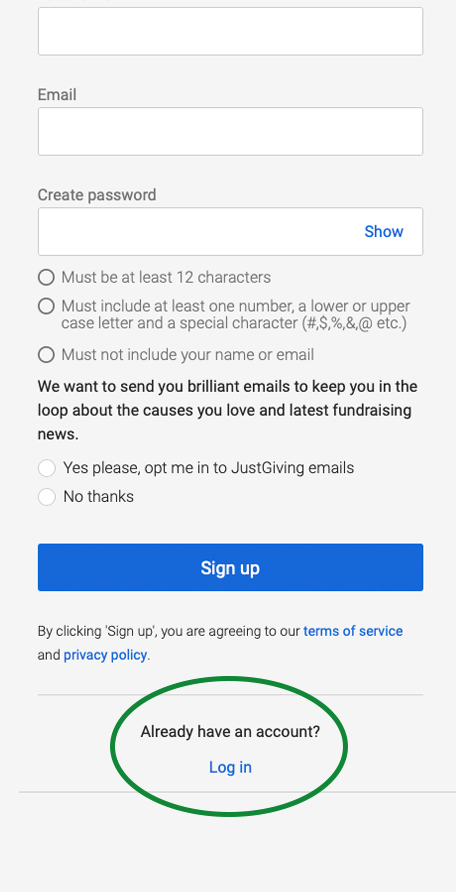
2. You can then sign up to a JustGiving account, or scroll to the bottom of this page and click on β€œLog In”

JustGiving sign up form
Sign In
JustGiving sign up form, with Login link highlighted
Or Click on Login

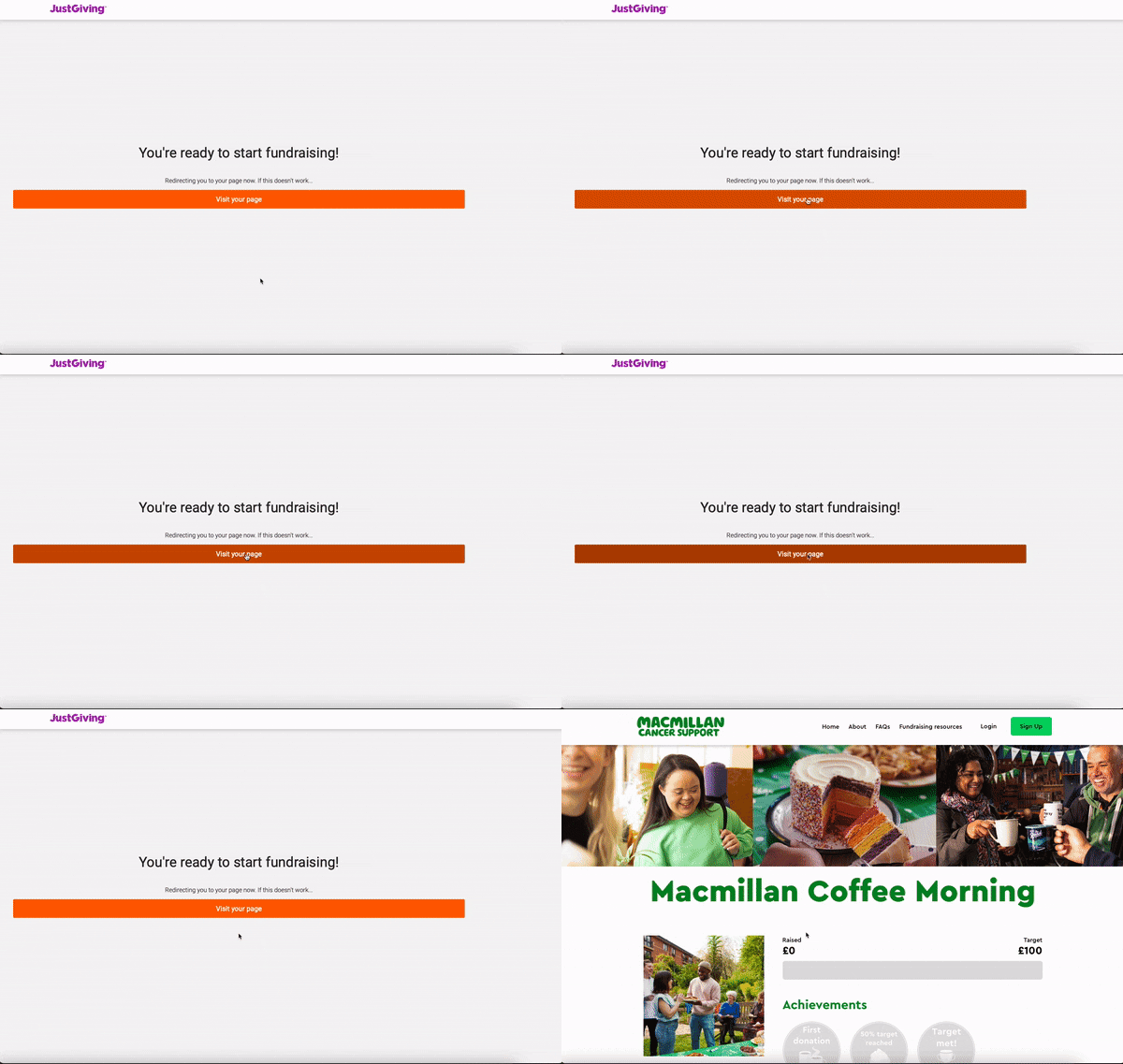
3. When the pop up β€œyou’re ready to start fundraising!” appears, you need to click on the orange β€œvisit your page” button

Animated image showing how to claim your fundraising page by clicking on the oraneg visit your page button

4. Once you are on your fundraising page, you can then click on β€œLogin” again on the top right toolbar on your fundraising page.

Screenshot of header higlighting login link

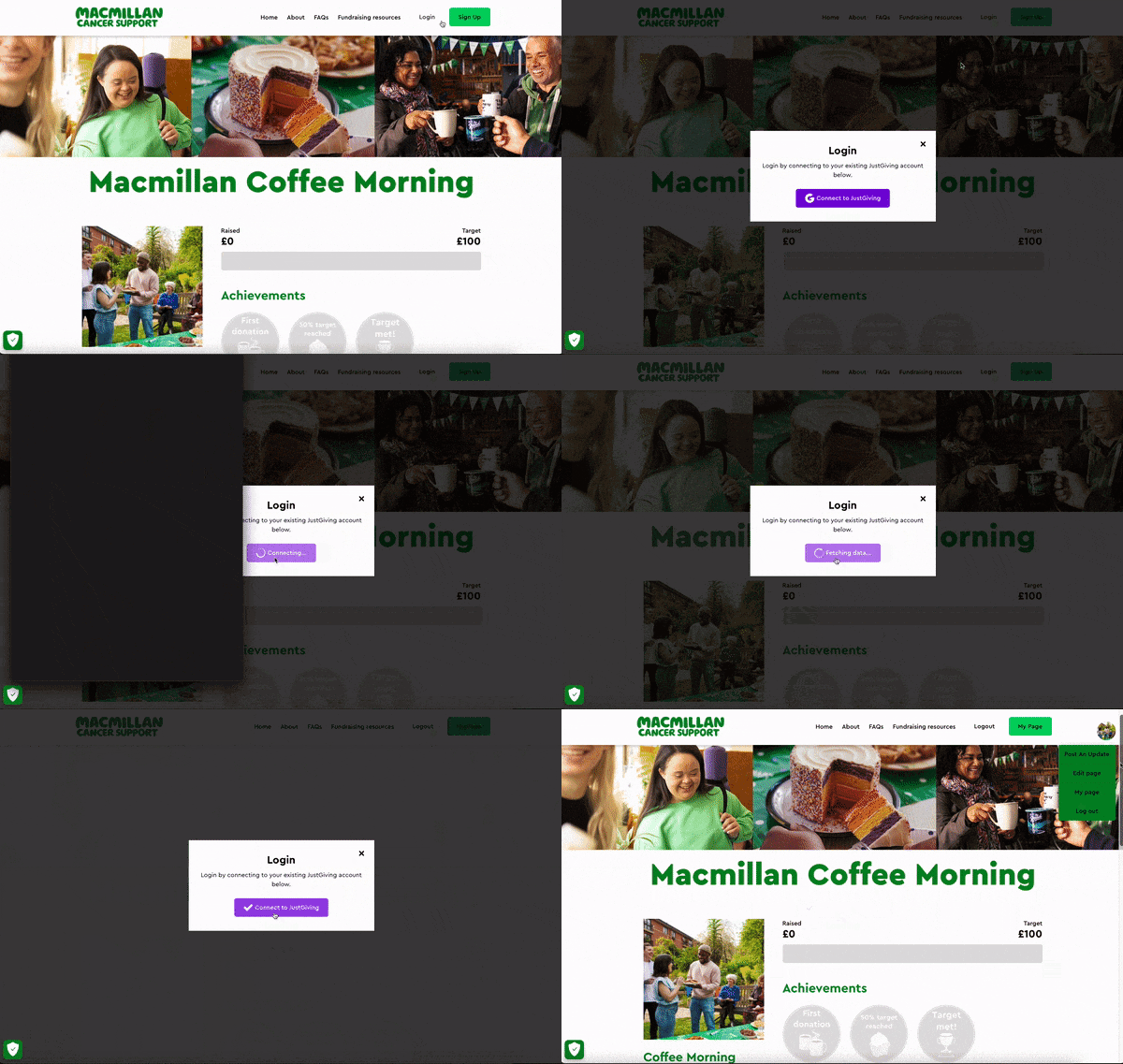
5.A new pop up will appear where you need to click on the purple β€œConnect to JustGiving” button.

Animated image, showing logging into JustGiving to connect a Macmillan Coffee Morning fundraising page.

6. This will then link your Coffee Morning Fundraising page to your JustGiving account.

7. To edit your page, or post an update, click on the round thumbnail on the top right of the screen to access to menu.